Smart Transfer: Copy My Data
DigiGen AppsProductivity
0.00.00 Reviews
- Version
- 1.5.0
- Installs
- 5.00M
- Age Rating
- Everyone
Screenshots
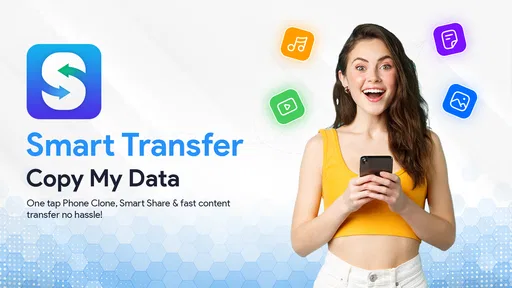
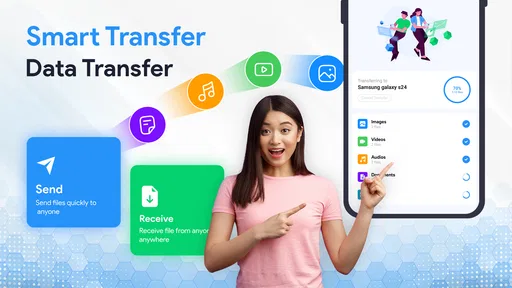
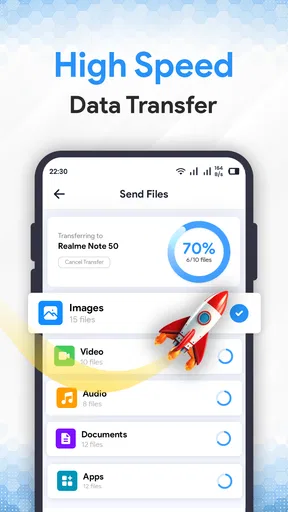
Our Review of Smart Transfer: Copy My Data
 Analysis by Appyee
Changing phones sounds exciting until I remember the small chores that come with it: moving personal files, checking what arrived, and figuring out which transfer method will be least awkward. Smart Transfer: Copy My Data is aimed at that moment. It is a free productivity app from DigiGen Apps, with over a million installs, and its central appeal is a guided way to move selected data between phones without making the process feel like a technical project.
My main question with any phone-transfer tool is not simply whether it can copy files. It is whether the process suits the devices I have, whether I can keep track of what I am moving, and whether I have a sensible fallback if a connection interrupts the job. Those practical details matter more than a broad promise of convenience, especially when the phone contains family photos or information I do not want to sort through again.
Choose it for the job you actually have
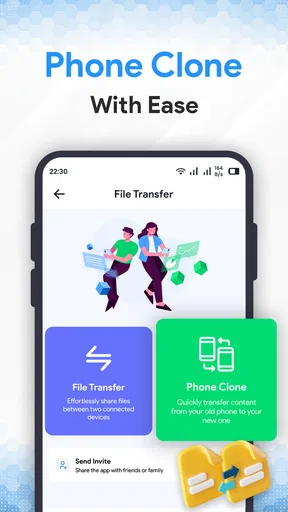
This app makes the most sense when the task is a direct move between two phones and I want a straightforward route for contacts, photos, videos, or music. Its focus is narrower than a general file manager: rather than being a place to organize everything day to day, it is meant to help with a transfer. That distinction is useful. I would open it for a migration or a deliberate batch of sharing, not as my everyday filing system.
Before starting, I would make a short plan: decide which types of content matter, check that both devices are available, and give the transfer enough uninterrupted time. That reduces the chance of rushing through prompts or discovering halfway through that I meant to move a different collection. For a phone upgrade, I would also keep the old device untouched until I have checked the new one. A transfer tool can make copying easier, but it does not replace a careful handover routine.
Where a direct wireless transfer helps
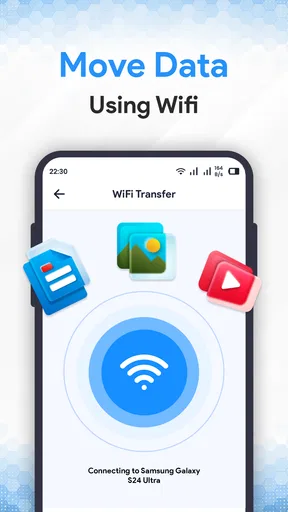
The app is designed for cross-platform transfers, so it is relevant when the two phones do not share the same operating system. That can be more convenient than manually sending items one by one or relying on a computer as an intermediary. The wireless approach also avoids hunting for a cable that fits both devices. Both phones need to be on the same Wi-Fi network, so I would check that before opening the transfer flow rather than treating it as an optional detail.
A realistic use case is replacing a phone at home after a busy week. I could set aside a quiet stretch, connect both devices to the same network, choose the content I want to carry over, and leave them together while the job runs. That is a better fit than trying to move a large collection while walking between networks or using the phones for other tasks. For a handful of files, a messaging app or ordinary sharing tool may be quicker; for a planned batch across platforms, a dedicated transfer app is easier to reason about.
One practical tip is to treat the first transfer as a check, not a reason to erase the old phone immediately. Open a few transferred photos and videos on the receiving device, look for the contacts you most need, and confirm that the result is usable before cleaning up. This small verification step is especially worthwhile when the content has sentimental value or would be difficult to collect again.
Getting Started
First off, installing Smart Transfer: Copy My Data is a breeze. Available on both Android and iOS, you can snag it from Google Play or the App Store. Once downloaded, the setup process is pretty straightforward. The app guides you through each step with clear instructions, which is great if you’re not tech-savvy.
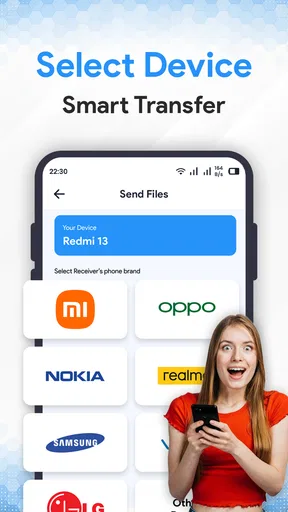
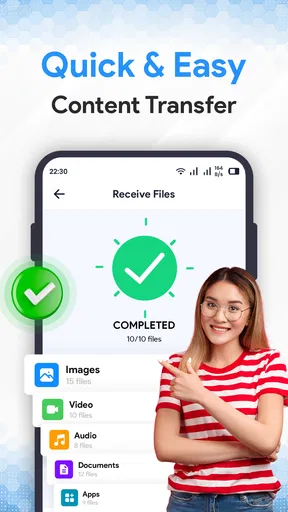
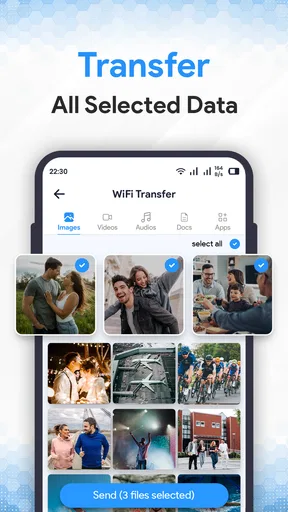
When you open the app, you’re greeted with a clean, user-friendly interface. It’s like the app is saying, "Hey, I got you covered!" You’ll find options to transfer contacts, photos, videos, and even music. There's a real emphasis on ease of use here.
Features Galore
The app supports cross-platform transfers, which is a huge plus if you’re switching from Android to iOS or vice versa. You don't need cables or cloud storage; everything is done wirelessly. Just ensure both devices are connected to the same Wi-Fi network, and you're good to go.
It also boasts a quick transfer speed. During my test run, I moved a hefty amount of photos and videos in a matter of minutes. No more waiting around forever. Plus, the app ensures that no quality is lost during the transfer, which is a relief if you’re moving precious memories.
Even with a smooth run, I would avoid starting a large transfer when either phone is about to be needed. A connection interruption can add friction, and the original phone should remain available until I have checked the destination. If the network is busy or unstable, waiting for a calmer moment is a better choice than repeatedly restarting in a rush.
Security and Privacy
In today’s world, data privacy is paramount, and this app takes it seriously. The transfers are secure, so you don’t have to worry about your data falling into the wrong hands. It’s reassuring to know that the app doesn’t store your data on its servers, keeping everything local to your devices.
For me, the useful habit here is to be deliberate about the setting. I would make a transfer somewhere I am comfortable keeping both phones nearby, avoid selecting content I do not intend to move, and review the destination before considering the task finished. Local transfer is appealing for people who would rather not route personal files through cloud storage, but it does not remove the need to pay attention to which devices are involved and what is being copied.
A Few Hiccups
Okay, not everything is perfect. While the app is generally smooth, I did experience a couple of minor connection drops during the transfer. Though it reconnected quickly, it’s something to keep in mind if you’re in a hurry.
Also, if you’re moving data from a really old device, you might run into compatibility issues. But honestly, these are small potatoes compared to the convenience the app offers.
That is why I would not treat it as the only safeguard for a complicated phone change. If the old device is unreliable, the material is irreplaceable, or the move involves more than the app’s stated content categories, a manufacturer’s migration option or a separate backup may be a better part of the plan. Those alternatives can be more appropriate when the goal is a broader device setup rather than a focused transfer of selected files.
Who Will Love This App?
If you’re someone who frequently changes devices or shares a lot of media with friends and family, you'll find this app incredibly useful. It’s also ideal for tech novices who might find traditional methods of data transfer intimidating.
For the more tech-savvy, the app might seem a bit basic, but its efficiency and simplicity can still be appreciated. It’s like having a personal assistant for your data transfers!
I would especially recommend it to someone who wants a guided, phone-to-phone option and does not want to set up a cloud workflow just to move a collection. Someone who already keeps everything in a cloud account, prefers a computer-based archive, or needs a full device restoration may be better served by those existing tools. The right choice depends on whether the job is moving selected content or recreating a whole phone environment.
There is also a cost question worth considering before relying on it for repeated use. The app is free to install, while in-app purchases range from $14.99 to $44.99 per item. I would first work out whether the basic transfer path covers my needs and look carefully at any purchase screen before confirming anything. That keeps a simple one-off migration from turning into an unexpected expense, and helps frequent users judge whether paid options make sense for their own routine.
What to check before you begin
The practical questions are mostly about fit. Are both phones compatible with the app’s available setup? Can they stay on the same Wi-Fi network for the session? Is the content I care about among the categories the app presents? Answering those before beginning helps avoid treating a transfer as a complete phone backup when the task is actually more specific.
The app is rated for Everyone, and its current version is 1.5.0, with Android 8.0 as the minimum operating-system requirement. Those details are useful when deciding whether an older Android phone can participate. I would check the version and system requirements on both ends before arranging a migration, particularly if one device has been out of use for a while.
Another small but useful workflow choice is to separate a large move from casual sharing. For a one-time phone change, I would prioritize the essential categories first and verify them, then decide whether anything else needs attention. For sharing a few pictures with a friend, a familiar built-in sharing method may involve fewer steps. Matching the tool to the size and importance of the job is the simplest way to avoid overcomplicating it.
Final Thoughts
All in all, Smart Transfer: Copy My Data is a solid choice if you’re looking for a hassle-free way to move your data. Its ease of use, combined with fast and secure transfers, makes it a must-have app for anyone dealing with multiple devices.
So, if you’re ready to ditch the cables and cloud storage drama, give this app a whirl. You might just find it’s the solution you’ve been searching for!
My recommendation is a little more specific: choose it when you want a guided wireless transfer between phones and the content you need to move fits its focused approach. Keep both devices close, use a stable shared network, and check the receiving phone before retiring the old one. If you need a full system restore, prefer a computer archive, or cannot risk a connection interruption, choose a method built around that need instead. For a straightforward phone-to-phone move, this app offers a practical starting point without making the task feel like a technical chore.
Verdict
Strengths of Smart Transfer: Copy My Data
- Seamless data transfer between devices.
- Supports multiple data types like contacts, media.
- User-friendly interface for easy navigation.
- Fast transfer speeds with no data loss.
- Cross-platform compatibility for Android and iOS.
Limitations of Smart Transfer: Copy My Data
- Requires stable internet for optimal performance.
- Some features locked behind a paywall.
- Occasional connectivity issues reported.
- Limited support for older OS versions.
- No option for direct cloud backups.
Other Releases by DigiGen Apps
View All
Translate Now: Translator App
Business3.8
Similar Picks in This Category
View All
Google Calendar
Google LLC4.6

Google Drive
Google LLC4.3

Google Assistant
Google LLC3.9

Microsoft OneDrive
Microsoft Corporation4.6

Samsung Calendar
Samsung Electronics Co., Ltd.4.1

Microsoft OneNote: Save Notes
Microsoft Corporation4.6
Frequently Asked Questions
What is Smart Transfer: Copy My Data used for?
Smart Transfer: Copy My Data is an app designed to simplify the process of transferring data between devices. Whether you're switching from an old phone to a new one or need to share files with a friend, the app offers a seamless way to move your contacts, photos, videos, and more without needing cables or a computer.
Is Smart Transfer compatible with both Android and iOS devices?
Yes, Smart Transfer is compatible with both Android and iOS platforms. It allows cross-platform data transfers, making it easy to switch from Android to iOS or vice versa. The app supports a wide range of devices, ensuring flexibility and convenience for users who frequently change their phones.
How secure is the data transfer using Smart Transfer?
The app ensures a secure data transfer process by using direct device-to-device connections, which minimizes the risk of data interception. No data is stored on servers during the transfer, providing users with peace of mind that their personal information remains private and protected throughout the process.
What types of data can be transferred using Smart Transfer?
Smart Transfer allows users to move a wide range of data types, including contacts, photos, videos, calendars, and documents. This comprehensive support ensures that all essential data can be transferred with ease, making the transition to a new device smooth and hassle-free.
Are there any costs associated with using Smart Transfer?
Smart Transfer offers a free version with essential features for data transfer. However, there might be in-app purchases or premium features that require payment. Users can choose to upgrade for additional capabilities, such as faster transfer speeds or enhanced support, depending on their needs.
